View transitions
Connect article views with browser view transitions, stable snapshot names and Master CSS layout utilities.
On this page
#Overview
Keep an article's image and heading connected as readers move from a collection into its detail view. Use Master CSS for the layout, native CSS for the transition, and JavaScript for the state change. A working interface comes first: readers must still reach the article when animation is unavailable.
#Article list to detail
Open either article, then return to its card. Follow the image, title and date as their positions change. Keyboard focus moves to the article heading and returns to the selected button.
From collection to article
This is a same-document transition: JavaScript replaces the collection without navigating to another URL. The browser animates the visual handoff. Routing, data loading, browser history and focus remain application responsibilities. For real page navigation, use the cross-document recipe later in this guide.
Keep the image connected across layouts
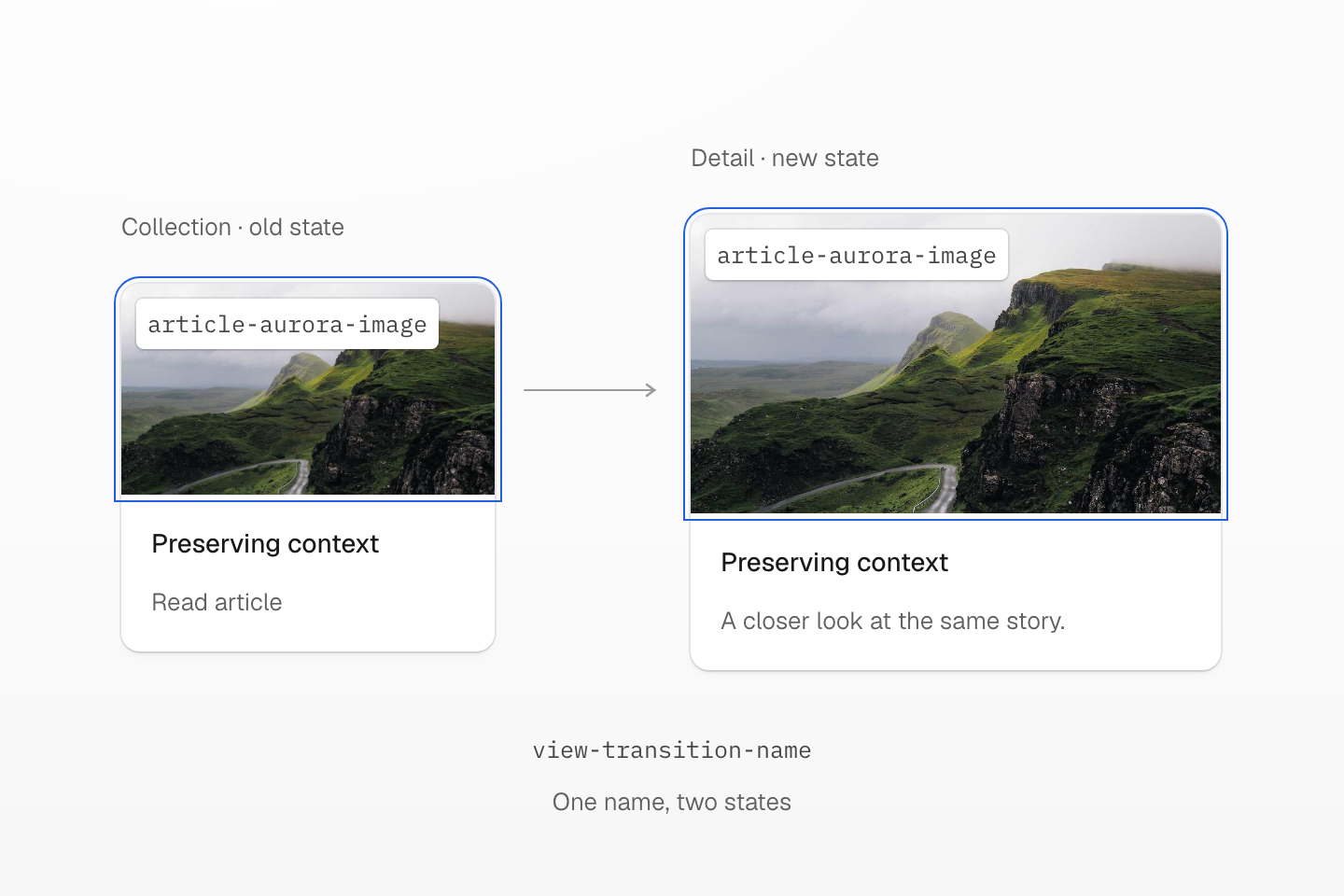
The browser matches captures by name. The old and new elements may be different DOM nodes; each rendered state must use the name only once.
Text description
- Capture the collection. The selected article image has the name article-aurora-image in the old state.
- Update the DOM. Replace the collection with the detail view inside the transition callback. The detail image uses the same name.
- Match the captures. The browser can animate the image between its old and new bounds. The name identifies the pair, not a requirement to keep the same DOM node.
#What the browser animates
A CSS transition interpolates changes to a property on an element that remains in the page. A view transition can connect different DOM nodes and different layouts: the browser captures the old view, runs your update, then builds a temporary pseudo-element tree for the old image and the new view. It animates that tree above the document. By the time the animation begins, the DOM has already changed.
Without named elements, the browser normally crossfades the root view. Adding matching names lets selected parts move and resize independently. The browser supplies those default animations; you do not need to measure both layouts or write movement keyframes. See the View Transition rendering model.
The DOM changes before the animation begins
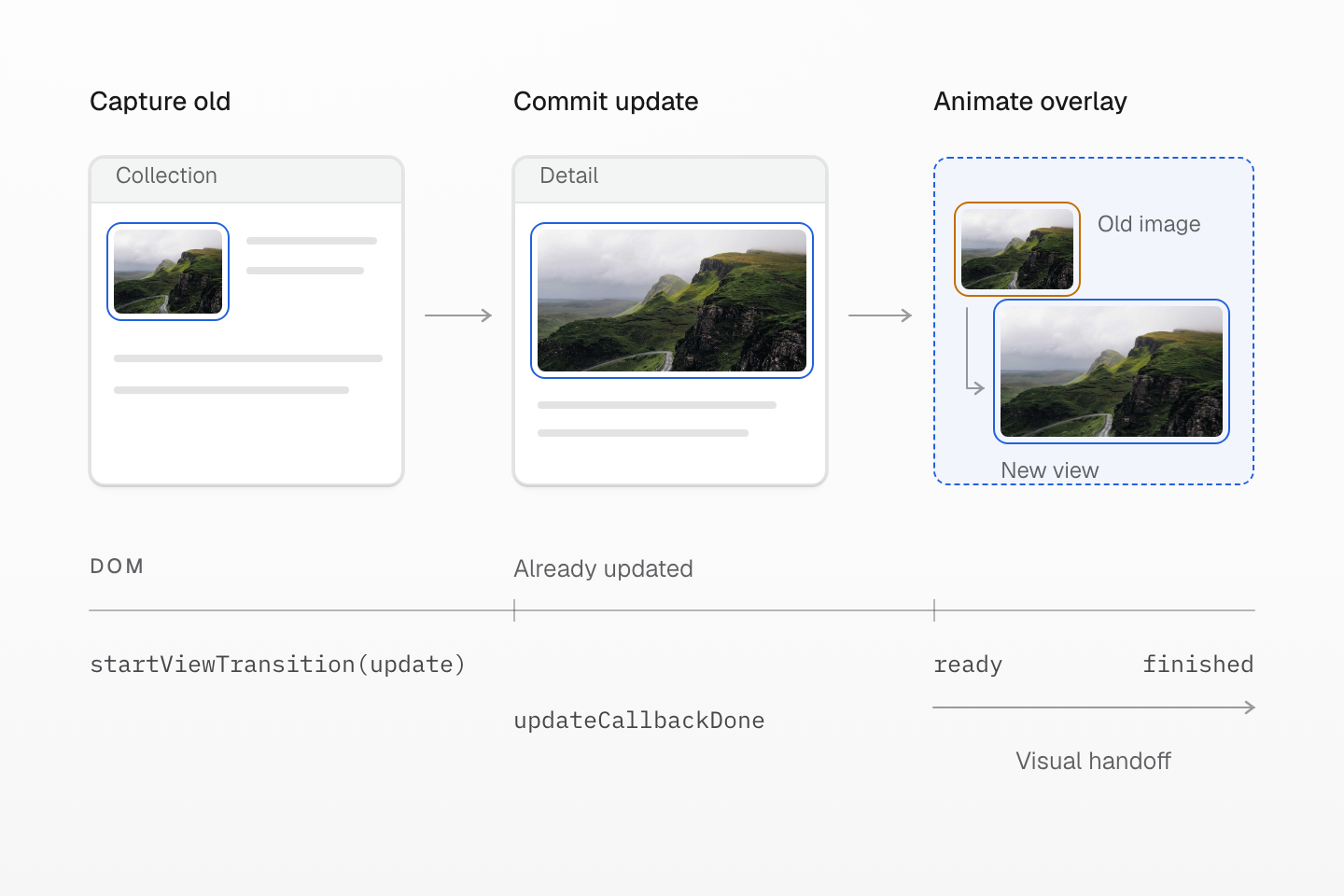
The callback commits the new view. The browser then animates a temporary overlay; it does not gradually replace the DOM.
Text description
- Before the update. The browser captures the old collection, including its separately named image.
- Inside the callback. The application replaces the collection with the detail DOM. updateCallbackDone reports completion of this update.
- After capture. The pseudo-element overlay blends the old image and new view. ready marks animation readiness; finished also resolves when animation is skipped.
#Build the article transition
Assume Master CSS is already installed. Put the following markup in the document body, load article-transitions.css in the head, and load article-transitions.js as a module. Replace the image path with one from your project. This reduced example implements one article; the live preview applies the same naming scheme to two.
Keep layout utilities on the elements. The native style attribute supplies each capture's identity; .article-capture assigns the shared transition styling group.
<section data-articles class="max-w-xl mx-auto p-md"> <article class="grid gap-md"> <img class="article-capture block w-full h-auto" style="view-transition-name: article-aurora-image" src="/images/article-aurora.jpg" width="1200" height="750" alt="A mountain ridge under soft light" /> <time class="article-capture block text-sm" style="view-transition-name: article-aurora-date" datetime="2026-05-12">May 12, 2026</time> <h2 class="article-capture text-xl m(0)" style="view-transition-name: article-aurora-title"> Designing transitions that preserve context </h2> <button type="button" data-read-more>Read article</button> </article></section><template id="article-detail"> <article class="grid gap-lg"> <img class="article-capture block w-full h-auto" style="view-transition-name: article-aurora-image" src="/images/article-aurora.jpg" width="1200" height="750" alt="A mountain ridge under soft light" /> <time class="article-capture block text-sm" style="view-transition-name: article-aurora-date" datetime="2026-05-12">May 12, 2026</time> <h1 tabindex="-1" class="article-capture text-3xl m(0)" style="view-transition-name: article-aurora-title"> Designing transitions that preserve context </h1> <p>The image, title and date retain their identity in a new layout.</p> <button type="button" data-back>Back to collection</button> </article></template>The template is inert until inserted, so its names do not collide with the collection. Load this stylesheet once for the feature. The timing applies to article captures; the rest of the view keeps the browser's default crossfade.
@layer components { .article-capture { view-transition-class: article; } ::view-transition-group(.article) { animation-duration: .5s; animation-timing-function: ease-in-out; }}Browsers that support named transitions but not view-transition-class can still pair the names; they retain default timing. For a fixed name, ::view-transition-group(article-aurora-image) is also a valid direct target.
Prepare content before starting the transition. On the animated path, image decoding happens before capture; a failed image still permits navigation and leaves its alternative text available. The DOM replacement itself happens inside the callback:
const root = document.querySelector('[data-articles]')const detail = document.querySelector('#article-detail')const list = document.createElement('template')list.content.append(...root.cloneNode(true).childNodes)const motion = matchMedia('(prefers-reduced-motion: reduce)')let activelet revision = 0motion.addEventListener('change', () => { if (motion.matches) active?.skipTransition()})async function changeView(content, focusSelector) { const request = ++revision active?.skipTransition() const update = () => { if (request !== revision) return root.replaceChildren(content) const target = root.querySelector(focusSelector) target.focus({ preventScroll: true }) target.scrollIntoView({ block: 'nearest', behavior: 'instant' }) } if (!document.startViewTransition || motion.matches) { update() return } await Promise.all([...content.querySelectorAll('img')].map(image => image.decode().catch(() => {}) )) if (request !== revision) return if (motion.matches) { update(); return } const transition = document.startViewTransition(update) active = transition // Skipping an animation does not mean the DOM update failed. transition.ready.catch(() => {}) const clear = () => { if (active === transition) active = undefined } transition.finished.then(clear, clear) // Let the caller handle an actual update error. Do not run update twice. await transition.updateCallbackDone}root.addEventListener('click', event => { if (!(event.target instanceof Element)) return if (event.target.closest('[data-read-more]')) { changeView(document.importNode(detail.content, true), 'h1').catch(reportError) } else if (event.target.closest('[data-back]')) { changeView(document.importNode(list.content, true), '[data-read-more]').catch(reportError) }})For multiple articles, give each part a stable name derived from the article ID, and return focus to that article's button. Fetch data before starting the transition rather than holding rendering while a network request finishes. In React, commit the state update with flushSync() inside the callback; calling a state setter alone does not guarantee the new DOM is ready for capture. Frameworks with their own transition integration should own that commit boundary.
#Naming snapshots
The same view-transition-name must be unique among rendered elements in each captured state. Reusing it across the old and new states is what forms a pair; reusing it twice within either state causes the transition to be skipped. Names present only in the old state exit; names present only in the new state enter.
| Identifier | Purpose | May be shared within one state? |
|---|---|---|
HTML class="article-capture" | Select real elements with ordinary CSS | Yes |
view-transition-name: article-aurora-image | Pair one old capture with one new capture | No |
view-transition-class: article | Select several named groups with ::view-transition-group(.article) | Yes |
The dot in ::view-transition-group(.article) refers to the transition class, not an HTML class. Assigning a transition class alone does not create a named capture. The platform's grouping examples show this distinction.
Names pair captures; classes group their styling
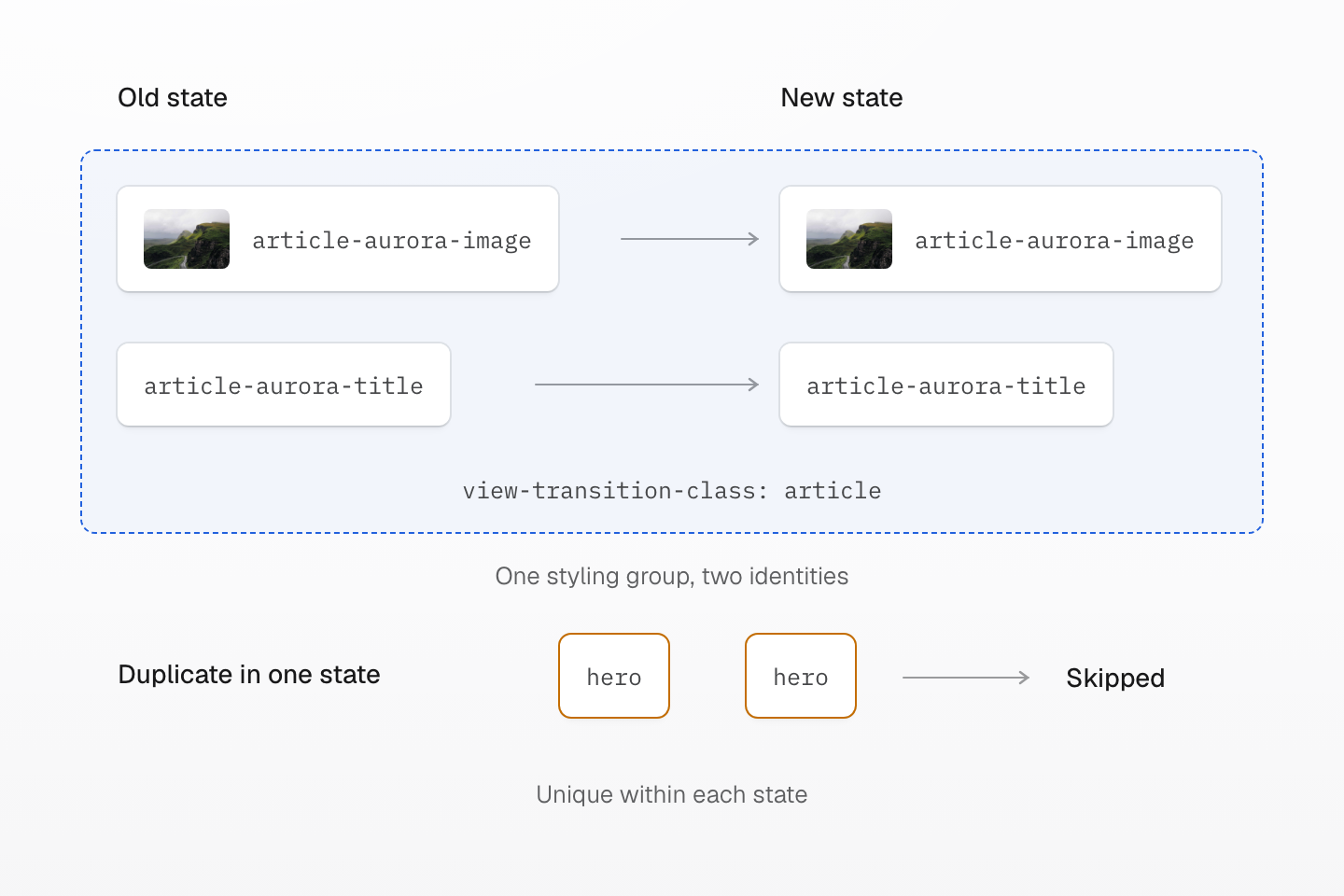
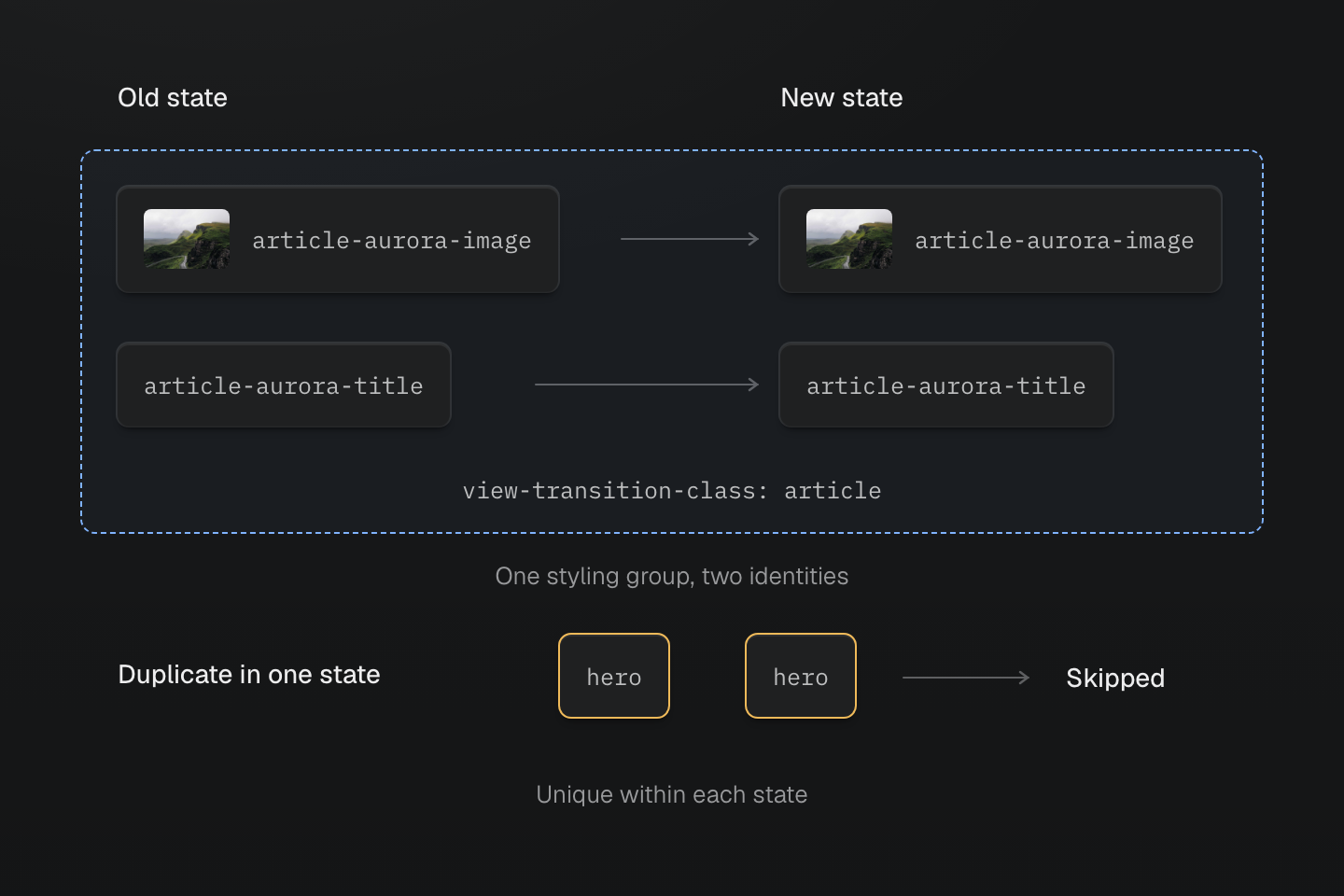
Identity must be unique in each state. A transition class can be shared by every named capture in a feature.
Text description
- Match names. article-aurora-image pairs with the same name in the new state; the title has a different, independently matched name.
- Share styling. Both named elements carry view-transition-class: article. ::view-transition-group(.article) can style both groups, independently of their HTML classes.
- Reject duplicates. Two rendered elements named hero in the same captured state are ambiguous. The animation is skipped; the application update can still complete.
Use stable, valid CSS identifiers such as article-aurora-image; do not use titles or arbitrary user text as names. view-transition-name: match-element lets the browser assign identity when the same DOM element survives an update, such as a keyed list reorder. It does not pair replacement nodes or separate documents. This example replaces nodes, so it uses explicit names.
#Styling transition pseudo-elements
For document transitions, the pseudo-elements originate at the document root, even when the named element is deep inside a component. The default tree contains a group for root and a group for each named capture. Each group contains an image pair with an old and/or new child.
One capture becomes a group and an image pair
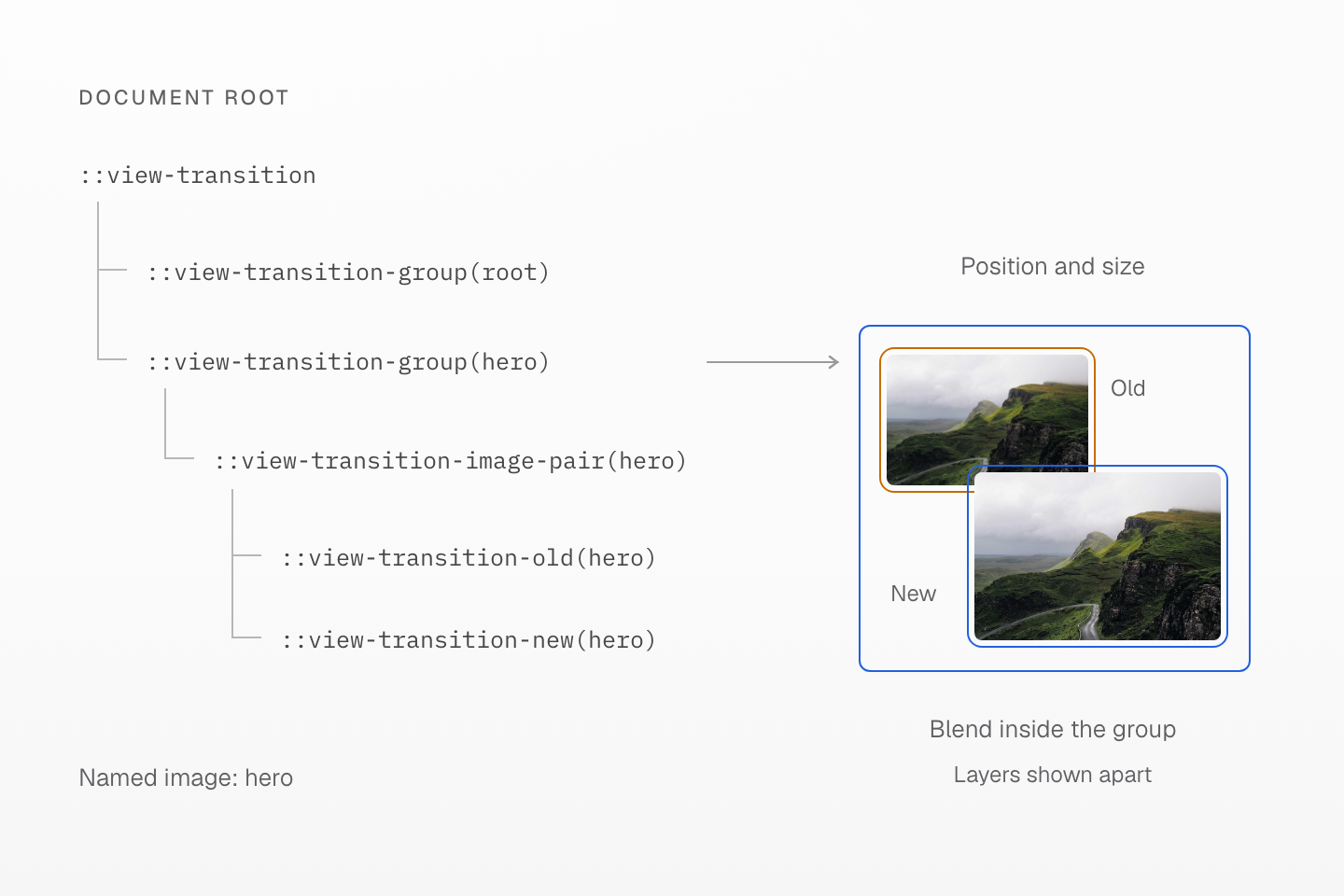
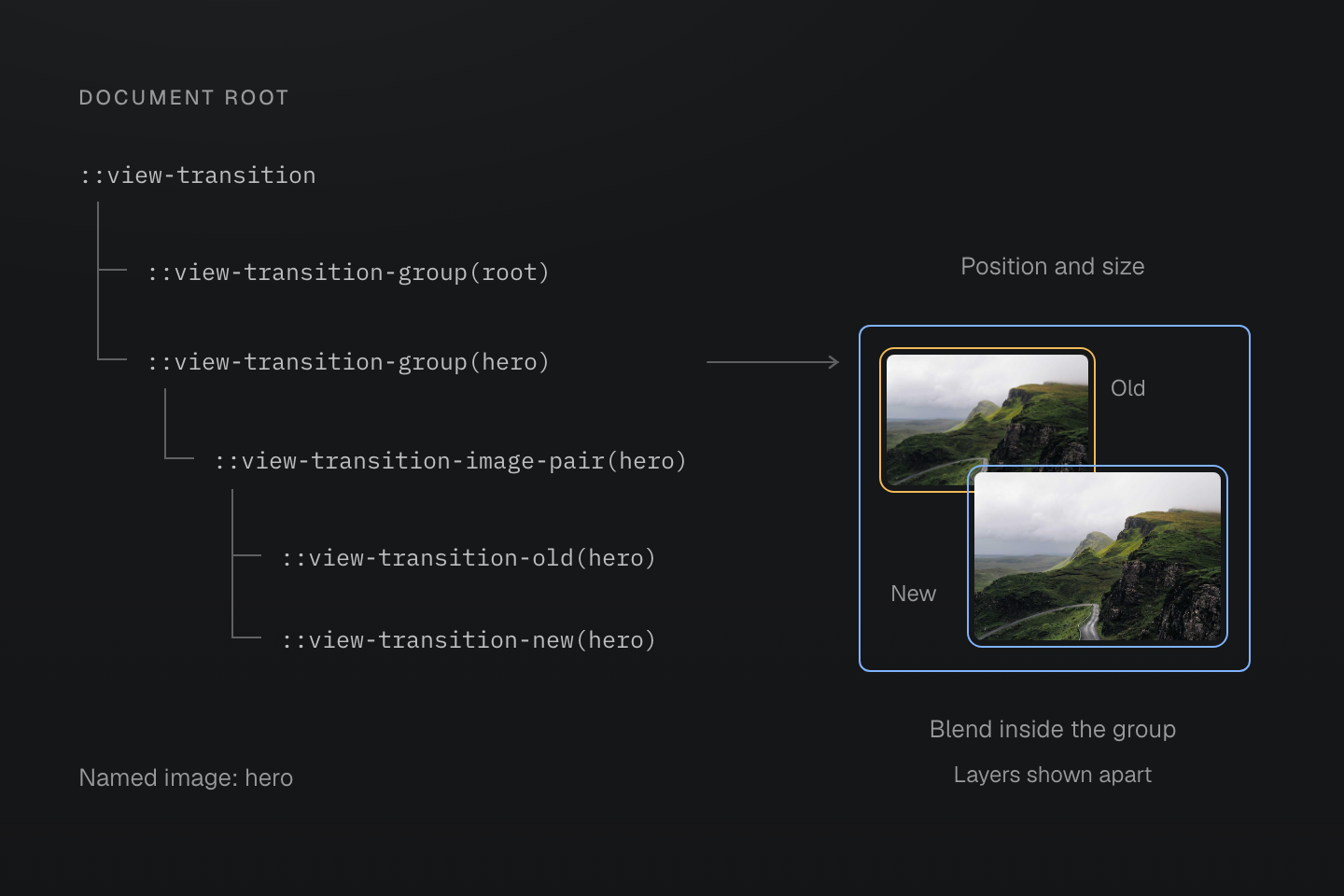
The group moves and resizes. Its old and new children control how the two views blend inside those bounds.
Text description
- Attach to the root. Document transitions generate their pseudo-elements at the document root, not beneath the original card element.
- Move the group. The hero group animates between the old and new bounds. Its image-pair child contains the outgoing and incoming images.
- Blend the views. Old and new children animate their image content. The separate root group holds the remaining page capture; missing old or new children represent entering or exiting captures.
The old child holds a static snapshot; the new child displays a live rendering of the updated element. These are visual representations, not extra interactive copies of your markup.
Set duration and easing on ::view-transition-group(...) to tune movement and resizing. The browser's default old/new animations inherit timing from their group. Target ::view-transition-old(...) and ::view-transition-new(...) when you need to change how the outgoing and incoming content blends. An animation shorthand on the group can replace the browser-generated movement animation, so override only the properties you intend to change.
Keep selectors in a global, feature-owned stylesheet: a component-scoped .card::view-transition-old(...) cannot target the document-root tree. “Global” here describes selector reach; it does not require placing every feature's rules in one application-wide file.
#Choosing classes or native CSS
Master CSS can express these native properties and selectors. For a small fixed capture, the following is equivalent to native declarations:
<html class="(animation-duration:.5s)::view-transition-group(.article)"> <body> <img class="(view-transition-name:article-aurora-image) (view-transition-class:article)" src="/images/article-aurora.jpg" alt="A mountain ridge" /> </body></html>Generated CSS
@layer utilities { .\(view-transition-class\:article\) { view-transition-class: article } .\(view-transition-name\:article-aurora-image\) { view-transition-name: article-aurora-image } .\(animation-duration\:\.5s\)\:\:view-transition-group\(\.article\)::view-transition-group(.article) { animation-duration: .5s }}The pseudo-element utility belongs on html, not on the image. In a mounted component, adding that class also means owning its lifetime on a shared root. As animation selectors, keyframes and motion conditions grow, a native stylesheet keeps those related decisions together and makes their scope easier to inspect.
For data-driven identities, set a native property rather than assembling a new utility class:
// article.id is a stable slug controlled by the application, such as "aurora".image.style.viewTransitionName = `article-${article.id}-image`Static scanning does not execute string interpolation. A constructed class such as '(view-transition-name:article-' + id + '-image)' is not a complete class in source. A native style value needs no new generated rule. Another valid option is a complete utility class referencing a CSS custom property; see changing values without changing classes.
Use classes where they keep a local decision easy to read. For this feature, the default is layout utilities in markup, identities in data or native styles, and transition selectors in CSS. The same division gives an AI assistant explicit places to change each concern; it is an authoring recommendation, not a restriction in Master CSS.
#Cross-document transitions
When articles have their own URLs, retain ordinary links and let the browser navigate. Both pages must be on the same origin and opt in. Put this in a stylesheet loaded by both documents:
@view-transition { navigation: auto;}@media (prefers-reduced-motion: reduce) { @view-transition { navigation: none; }}On the collection page, link to the actual article URL. The shared image uses the same explicit name on both pages:
<a href="/articles/aurora/"> <img src="/images/article-aurora.jpg" alt="Read the Aurora article" style="view-transition-name: article-aurora-image" /></a><article> <img src="/images/article-aurora.jpg" alt="A mountain ridge" style="view-transition-name: article-aurora-image" /> <h1>The Aurora article</h1> <a href="/articles/">Back to collection</a></article>Two triggers, the same named visual handoff
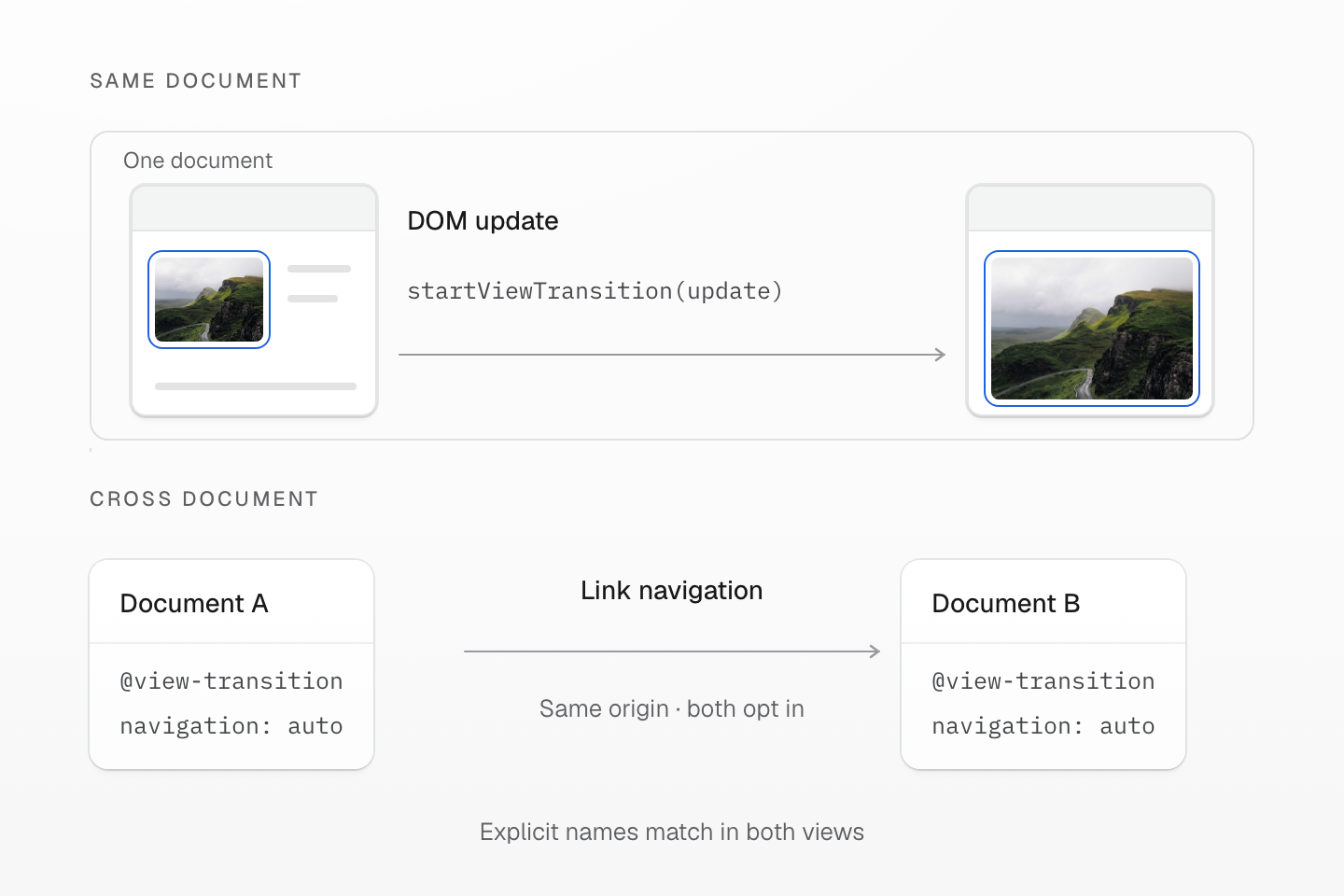
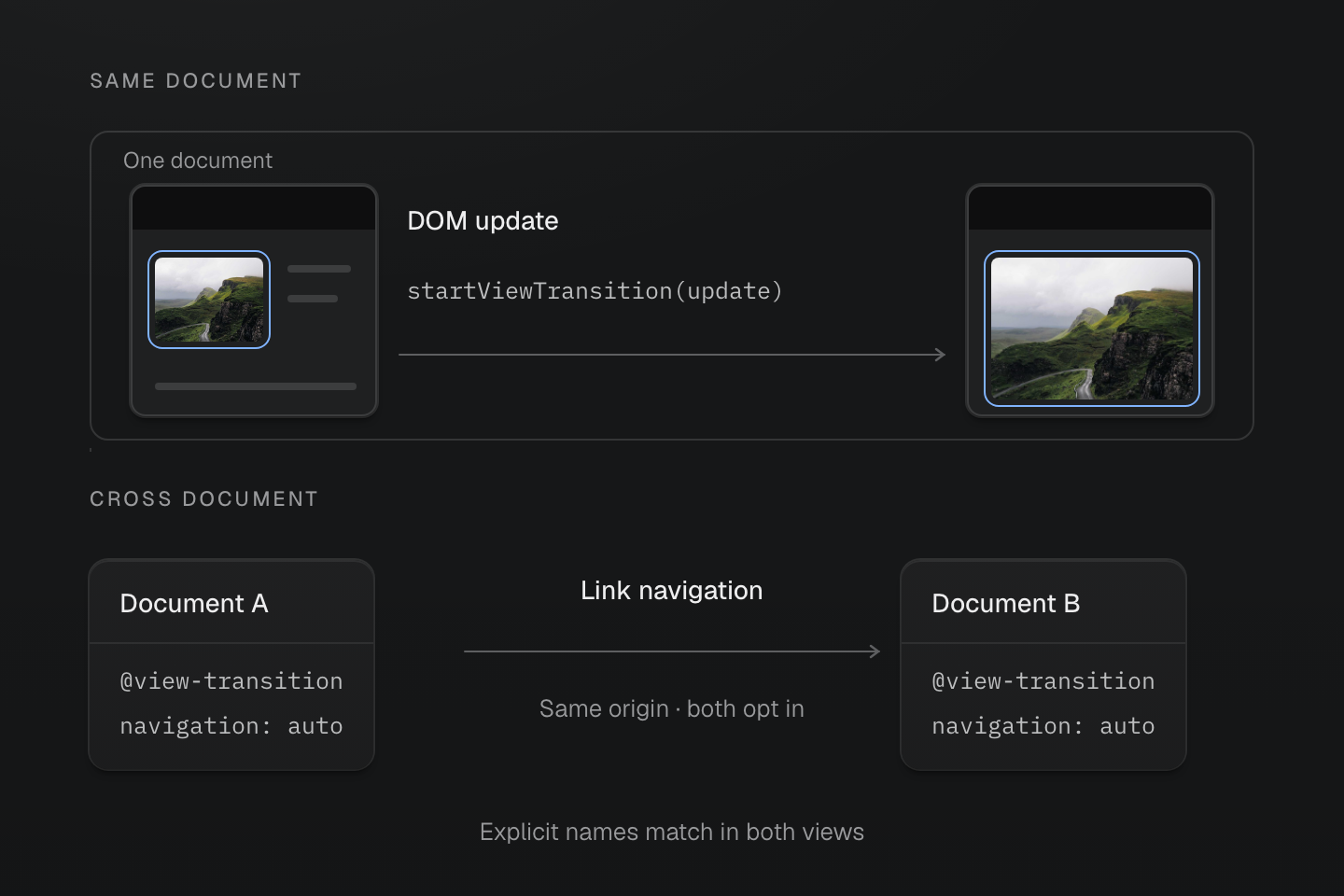
Use startViewTransition() for a DOM update. Use an ordinary navigation and CSS opt-in when the destination is another document.
Text description
- Update in place. startViewTransition(update) wraps a change to the current document. A client router that replaces its DOM follows this same-document path.
- Navigate normally. An eligible same-origin navigation connects two documents. Both load @view-transition { navigation: auto; }; no startViewTransition callback is needed.
- Retain a usable destination. Explicit matching names can connect separate nodes in either path. Unsupported transitions leave the DOM update or ordinary link navigation usable.
Do not wrap location.href in startViewTransition(): that callback controls updates to the current document. Cross-document transitions use eligible browser navigation, not an application callback. If a router intercepts the link and swaps the current DOM, use its same-document integration instead. Unsupported browsers still follow the link. Same-document API support does not establish cross-document support; consult the cross-document requirements and lifecycle.
#Reduced motion
The same-document example checks the user's preference before starting and skips an active animation if the preference changes. The cross-document stylesheet opts out of navigation animation under the same preference. Neither changes the destination or prevents interaction.
A @motion-safe duration override alone does not disable the browser's default transition: when that override stops matching, default animation remains. Gate the transition itself. If a router owns initiation, use its motion handling or disable the relevant pseudo-element animations in a reduced-motion rule.
#Fallbacks
The transition object exposes three different milestones:
| Promise | What it tells you |
|---|---|
updateCallbackDone | The DOM update callback completed, or failed |
ready | The animation is ready, or was skipped before starting |
finished | The transition ended, including a skipped animation; rejects if the update failed |
A resolved finished does not prove the animation played through. The main example handles ready rejection without repeating the update, and propagates an update error to reportError. In an application, replace that reporting with your error boundary or recovery UI. See the update callback contract.
#Verify the complete interaction
Open both articles with a pointer and keyboard, then return. Check focus, article identity and usable scrolling, including on a narrow screen. Repeat with reduced motion and with the API unavailable: the same content change must still work.
If content changes but motion is missing, inspect these conditions:
- Each rendered name occurs once in the old state and once in the new state when a pair is intended.
- The callback actually commits the DOM change before completing.
- Pseudo-element selectors target the document root, and their CSS is loaded.
- Images have dimensions and are ready to display; unavailable images do not block the update.
- The viewport stays stable throughout capture and animation. A content-sized iframe that changes height can cancel an otherwise valid transition. A fixed viewport with internal scrolling avoids that failure.
Observe a frame during the animation, not just the final DOM or the finished promise. The view transition frame algorithm explicitly skips the animation when its snapshot containing block changes size.